
Prerequisites
Warning: This use case requires access to the following apps and features:
Workflow Builder (Pro/Enterprise) - for automation
File Converter (Free/Paid) - for file conversion automation
Workflow Blocks: Formula (Free) - for workflow builder automation
DocuGen (Paid) - use-case specific for contract generation and contract signing
Please note that I have exchanged the names here for simplicity. File column Original is actually "Original Bank Doc" and Converted is actually "Proof of Bank Account" on my board.
The Problem
When our clients sign contracts, they must submit their banking details and upload a document proving their bank status. We collect this information prior to contract signing and use DocuGen to insert the document directly into the contract itself.
Unfortunately, DocuGen only supports uploading JPEG or PNG file types into generated documents. Because we cannot rely on clients to consistently upload the correct formats, we needed an automated solution to convert any incoming file type into a JPEG.
The Solution
To resolve this, I set up a system using specific columns and automated workflows to detect file types and convert them dynamically.
1. Column Setup
File Columns:
Original: Stores the document originally submitted by the client.Converted: Stores the final JPEG file used for the contract.
Status Columns:
File Type: Contains labels for expected extensions (e.g.,docx,.jpg,jpeg,.png,.pdf,xlsx). This also gets auto-updated with the workflow below.Convert to JPEG: ContainsYesandNolabels (used to streamline our automation triggers).
2. The Workflow Automation Steps
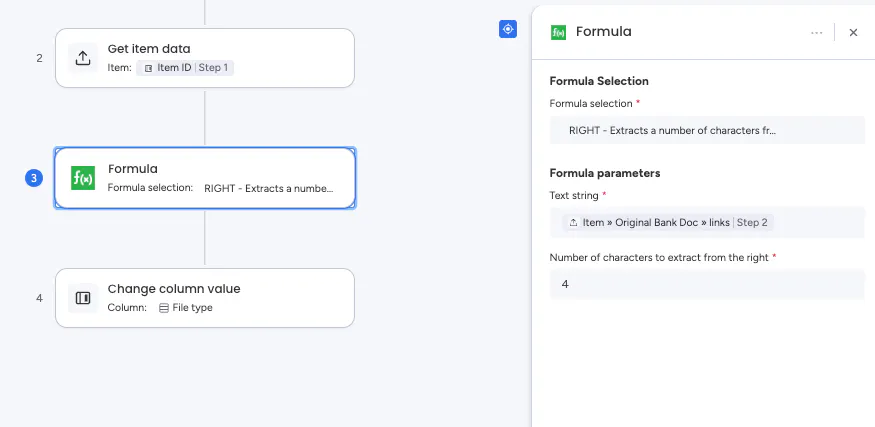
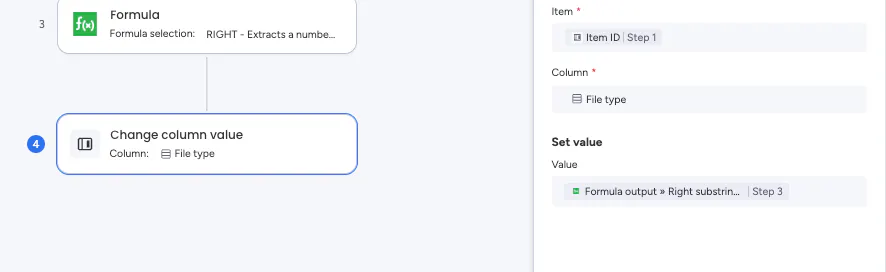
Step 1: Detect the Extension
I created a Workflow Builder automation that updates theFile Typestatus column based on the original file. Using the Workflow Blocks: FormulaRIGHTblock, the system captures the last 4 characters of theOriginalfile link. (Using 4 characters ensures we capture both 3-character and 4-character extensions). The trigger for firing this workflow can be customized to your specific board needs.Step 2: Conditional Routing
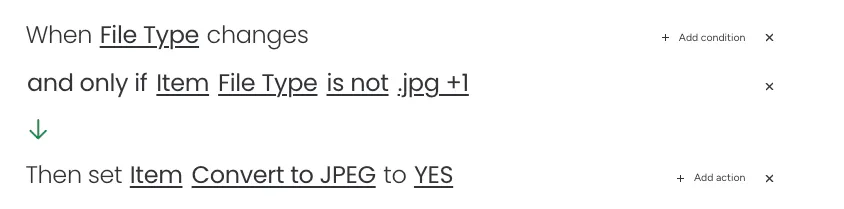
If the file needs conversion: A board automation checks if
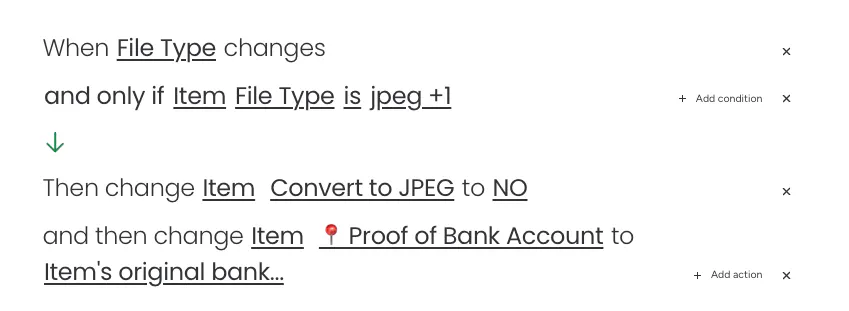
File Typeis NOTjpegorjpg. If it isn't, the automation changes theConvert to JPEGstatus toYes.If the file is already a JPEG: A separate board automation checks if
File TypeISjpegorjpg. If it matches, it bypasses conversion and copies the file from theOriginalcolumn directly into theConvertedcolumn.
Step 3: File Conversion
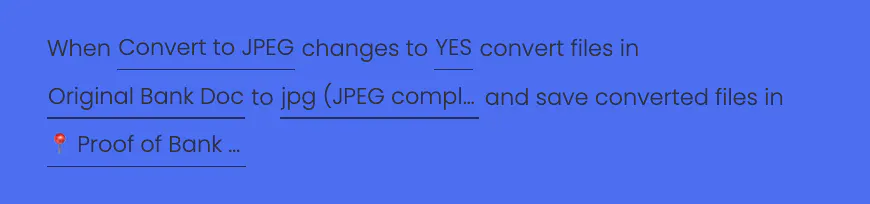
Using the File Converter app, I set up a recipe: WhenConvert to JPEGchanges toYes, convert the file inOriginaltojpgand place the output into theConvertedfile column.
The Result
With this workflow in place, every uploaded document is automatically normalized into a JPEG format. DocuGen can then seamlessly pull the file from the Converted column and place it directly into our generated contracts, leaving them ready for client signatures.