
Managing construction materials often means working with two types of data at the same time: the information collected on site and the reference data used to turn that information into actual purchase quantities.
We created a construction material planning workflow that combines a monday.com board with Smart Spreadsheet to handle these calculations, reporting, and item-specific documents in one setup.
Here’s how it works.
Start with the monday.com board
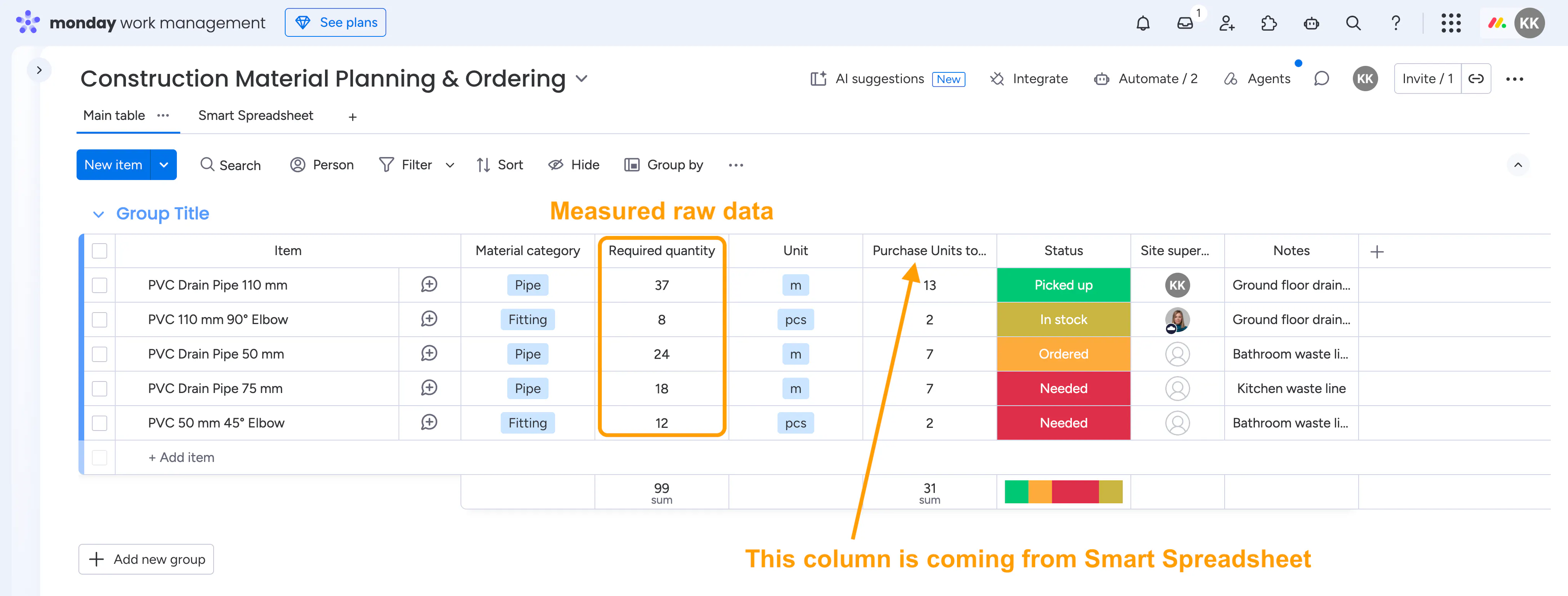
The monday.com board is used for the operational data. Each item represents a construction material, while the Required Quantity column contains the quantity measured or calculated on site.
The board can still be customized with the columns and statuses needed for a particular project.
One calculated value that we wanted to make available directly on the board is Purchase Units to Issue. This value is not entered manually. It is calculated in Smart Spreadsheet using the required quantity and the project's material reference data.
Keep material reference data separately
The reference data contains the parameters needed for material calculations:
Material name
Safety stock
Standard purchase unit size
Unit
Unit price
This data can be maintained directly in Smart Spreadsheet or imported from an existing .xlsx or .csv file.
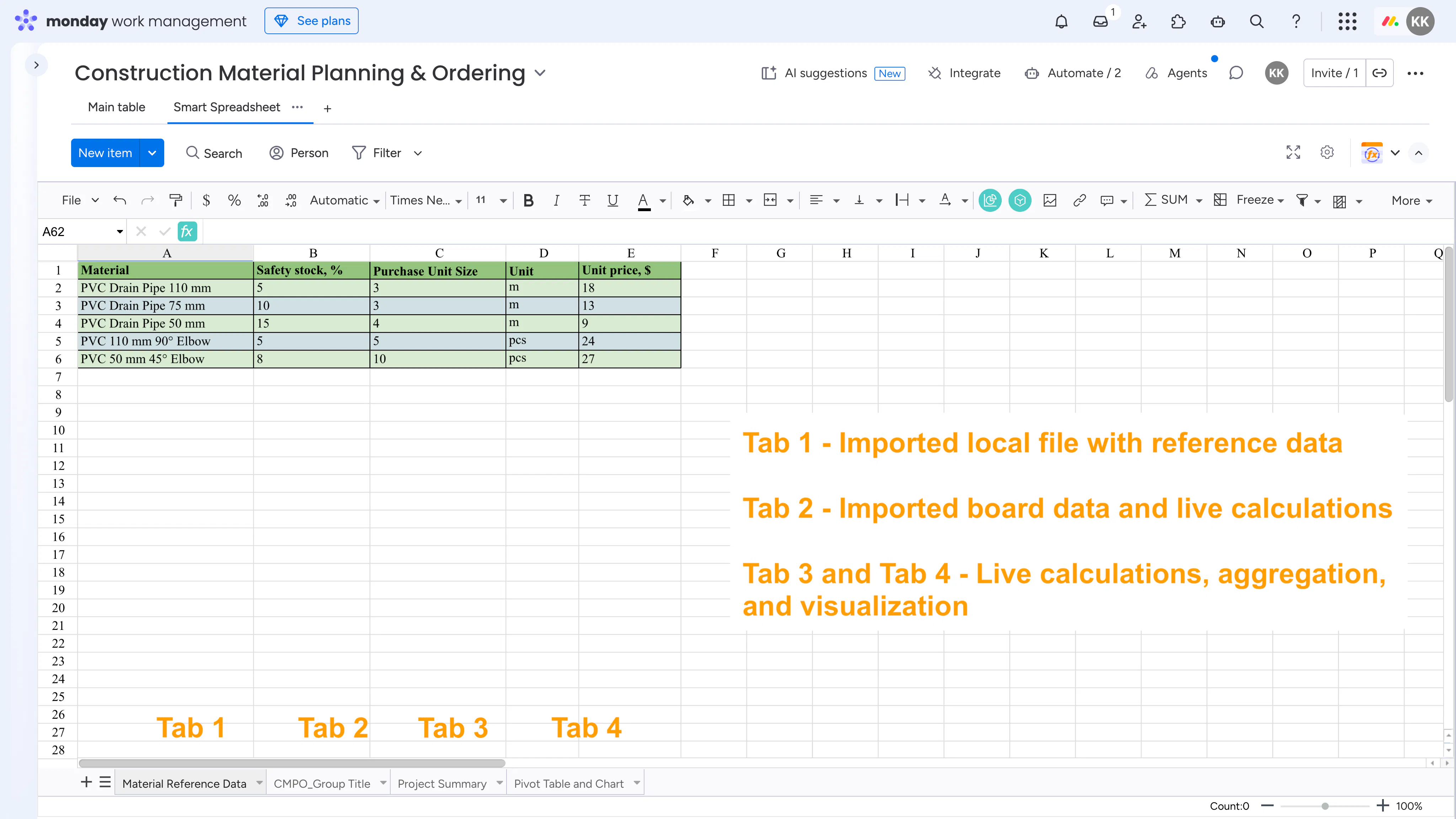
This separation is useful because reference values don't need to become additional formula and lookup columns on the monday.com board.
Calculate purchase quantities from live board data
The Smart Spreadsheet Board View pulls the material information from monday.com.
The spreadsheet can then use Excel-style formulas such as VLOOKUP() to find the appropriate safety stock, purchase unit size, and other parameters for each material.
For example, if the site supervisor needs 37 m of PVC Drain Pipe 110 mm and the standard purchase unit is 3 m, the calculation can add the defined safety stock and determine how many 3 m units need to be purchased or issued.
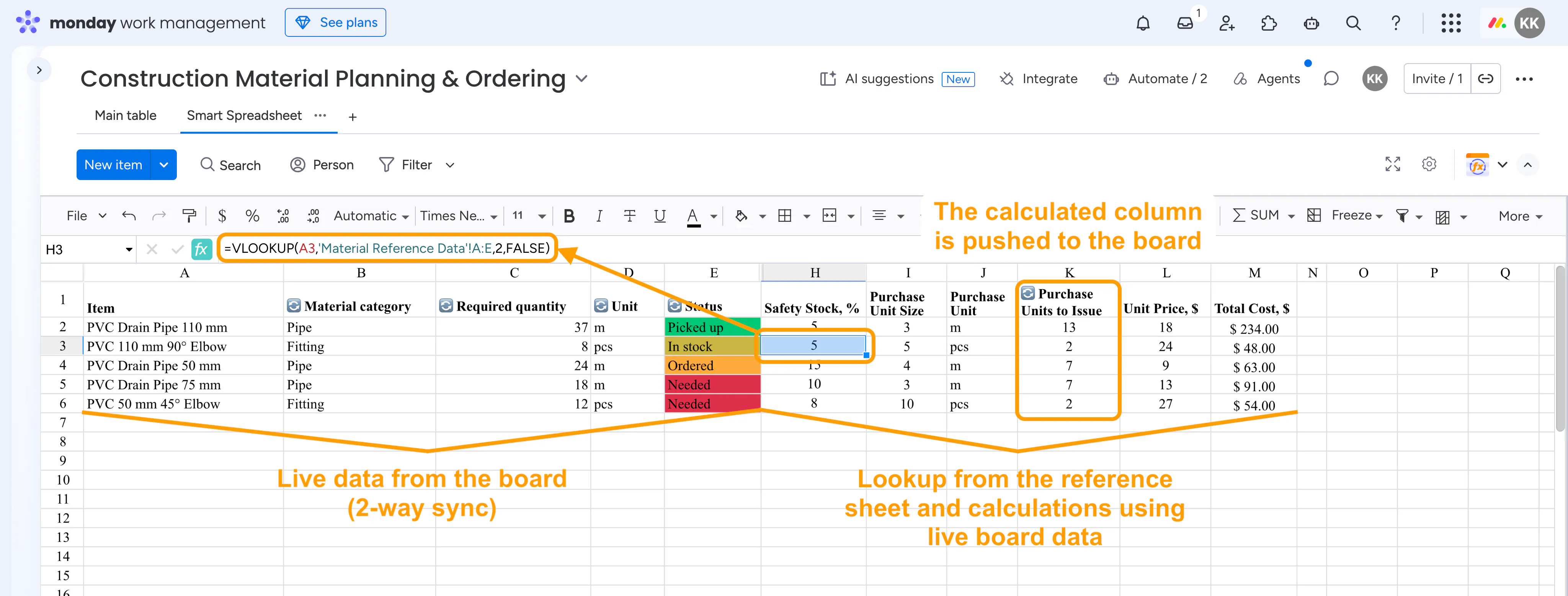
The important part here is that the board data remains live and synchronized in both ways with the spreadsheet. If the required quantity changes, the calculation uses the updated value.
Push calculated quantities back to monday.com
Once the calculation is ready, the Purchase Units to Issue value can be synchronized back to the monday.com board as a numeric column.
This makes the calculated result available to monday.com workflows. For example, the value can be used in an automation when the number of purchase units reaches a particular threshold.
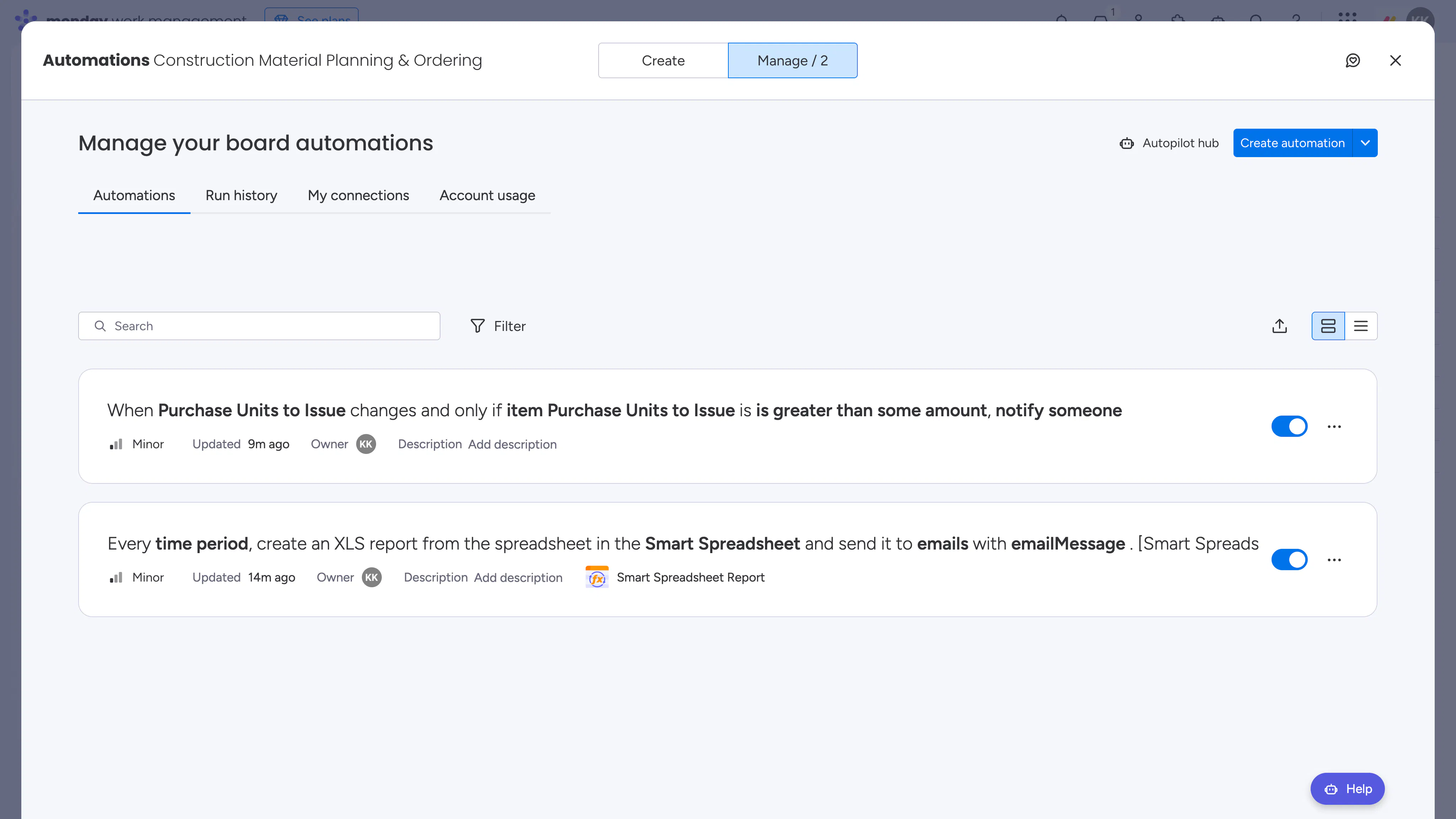
This also keeps the more advanced calculation logic in the spreadsheet instead of filling the board with additional lookup and formula columns. Besides, unlike numeric columns, formula columns are not recognized by monday.com automations - so this is another workaround we’ve built into the workflow.
Send spreadsheet reports automatically
The workflow also includes an automation for sending a Smart Spreadsheet view as an .xlsx report to an email address (check out the second automation on the previous screenshot).
This can be useful when a supervisor, procurement team, or project manager needs a spreadsheet report without opening the board.
Get a project-level overview
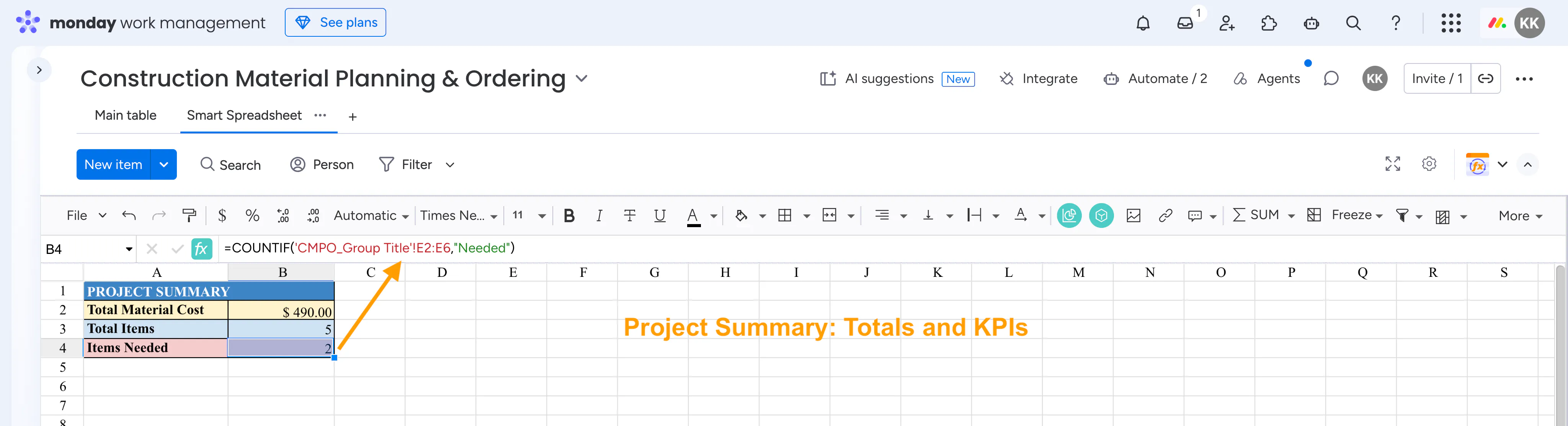
The Project Summary tab provides a quick overview of the project, including material costs and the number of material items.
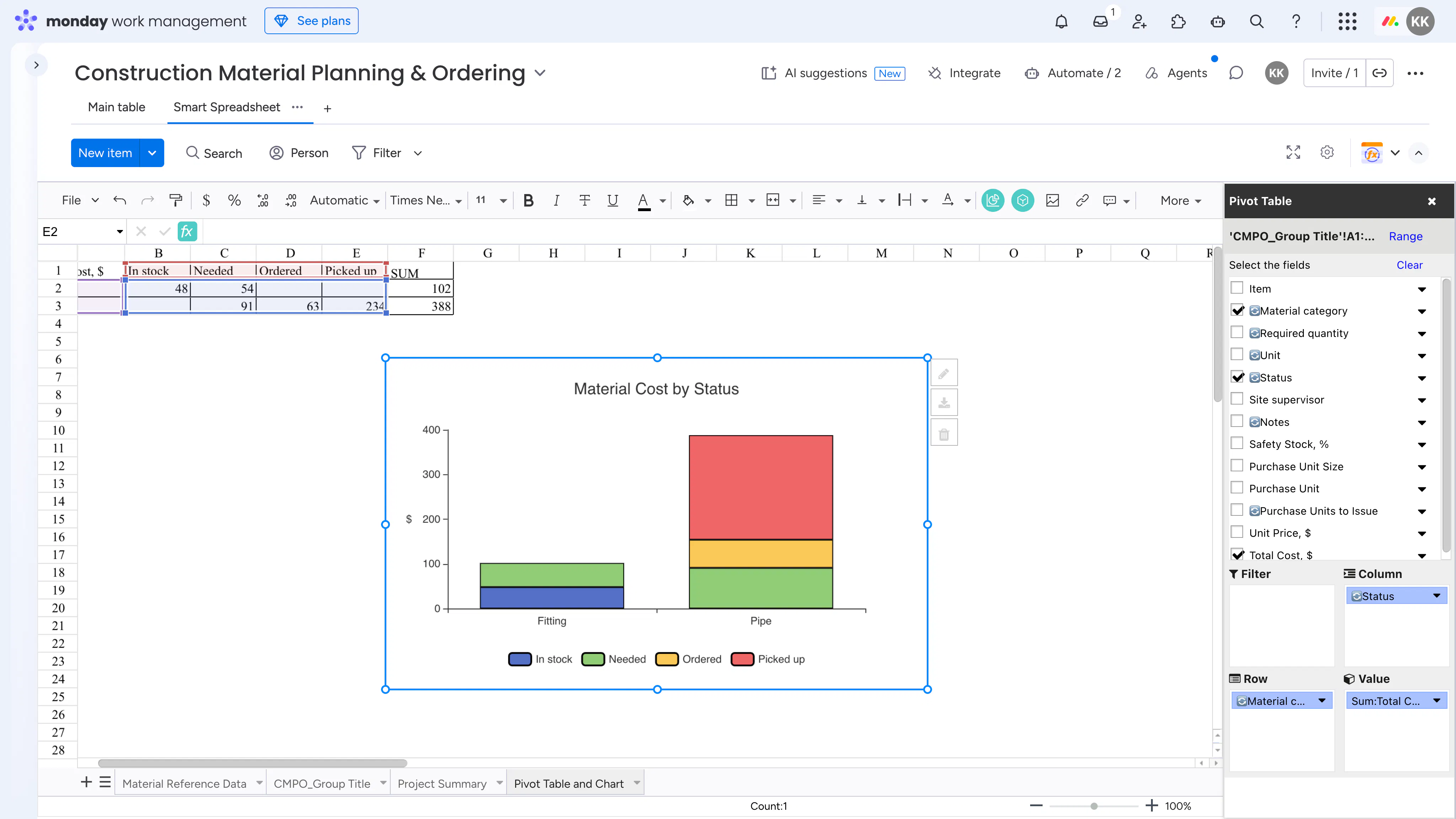
For a more detailed view, a Pivot Table and Chart can break material costs down by category and procurement status.
For example, materials can be grouped into statuses such as:
Needed
Ordered
In stock
Picked up
This makes it easier to see not only how much material the project requires, but also where each material currently stands in the procurement process.
Generate a Material Issue Note for each item
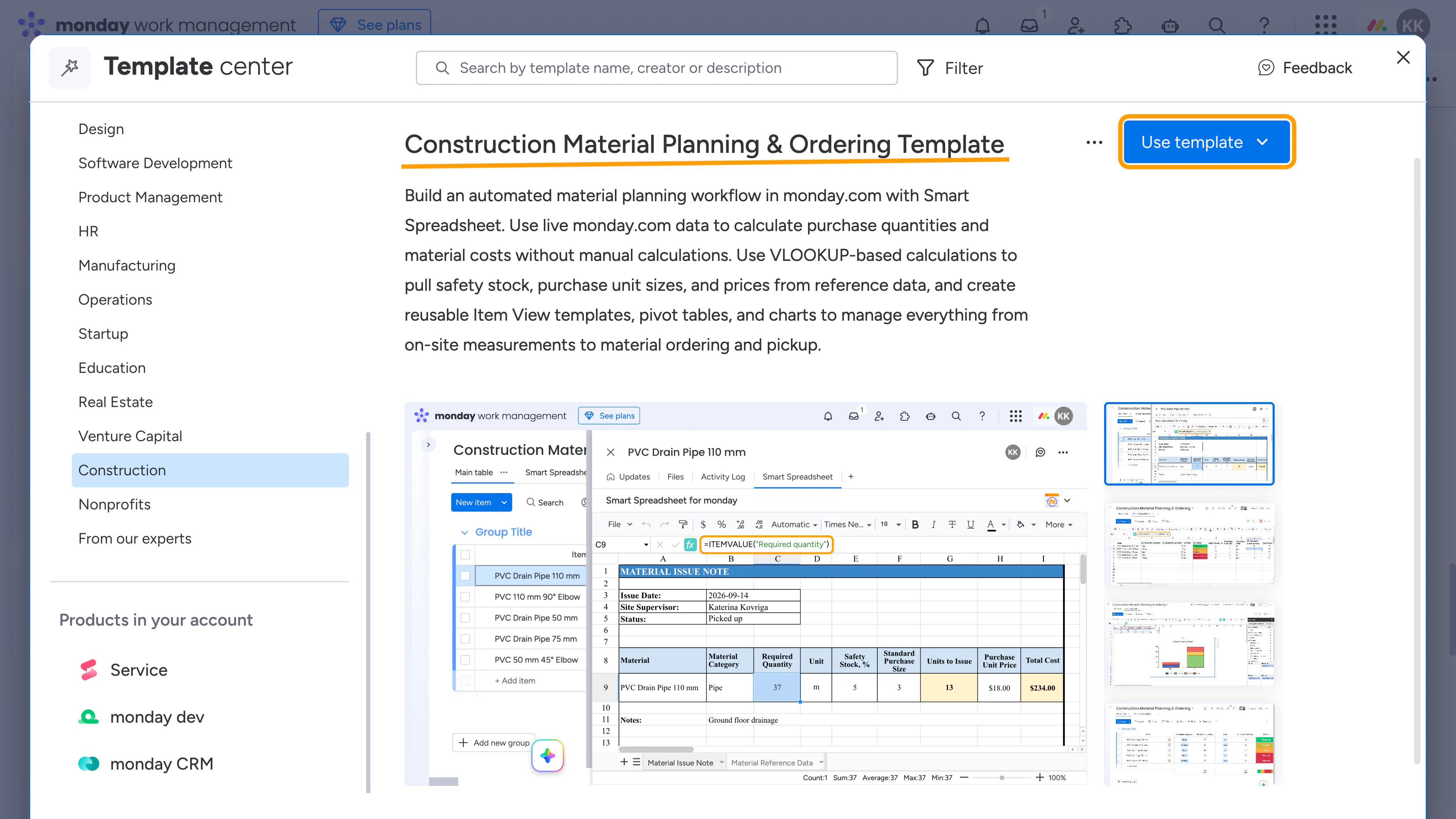
There is another part of the workflow that happens at the item level: each material item can have its own Material Issue Note based on its live monday.com data.
The Smart Spreadsheet Item View uses ITEMVALUE() to pull the current item information from the board.
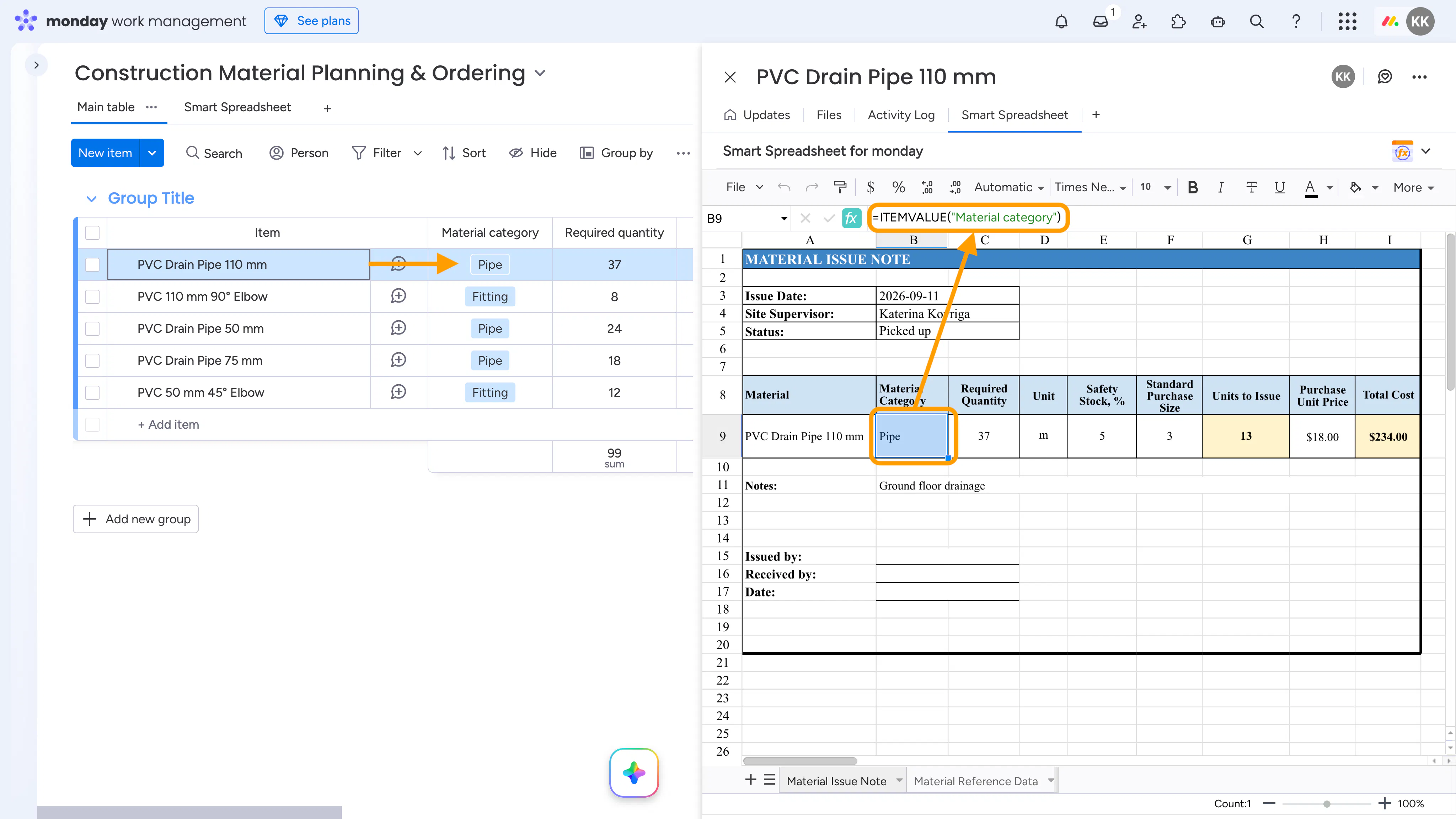
The same Material Reference Data can be included in the Item View, so the document can perform the same calculations as the Board View.
The Item View is then saved as a default template. As a result, each item gets its own Material Issue Note using the same structure, calculations, and formatting.
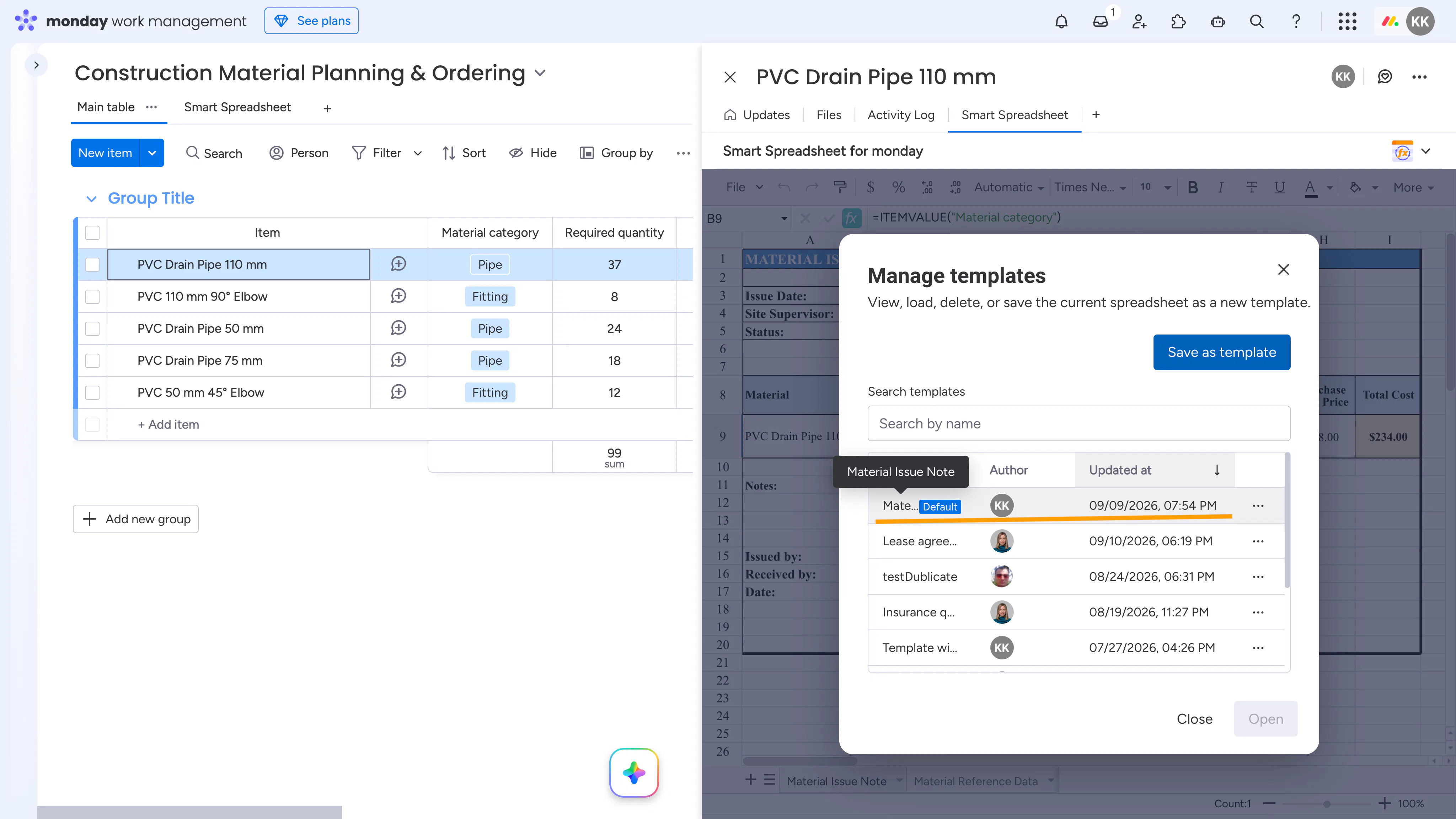
If the item data changes in monday.com, the corresponding note reflects the updated information.
Why we structured it this way
The idea was to keep each system focused on what it does best:
monday.com → operational data, statuses, workflow, and automations
Smart Spreadsheet → advanced calculations, reference data, reporting, and document templates
This also means the construction team can keep the monday.com board relatively simple while still having Excel-style calculations and spreadsheet-based reports available when needed.
The setup can be adapted to different construction workflows - for example, different material categories, purchasing rules, safety stock levels, or document formats.
You can find this template in the monday.com Template Center - look for Construction Material Planning & Ordering Template by Stiltsoft.
If you work with construction materials in monday.com, we'd be interested to hear how you currently handle purchase quantities, reference data, and material issue documents.